
On Call Info, press AI Analysis, then ask why this call failed. The panel stays open for the next question.
A failed row on Call Info shows a hangup cause, a provider, and a duration. The cause text says what the code means. You still have to see which attempt died, and whether a later provider completed the call.
AI Call Analysis is the AI Analysis button on that page. The first press opens the panel. The second press runs Explain why this call failed, or you type your own question and press Submit a Question. The reply comes back in the panel. The box stays, so the next line can be how to fix it, how to avoid the next one, or what you suggest.
This is for a client who already runs MOR or M4 and has an active support plan. A support plan includes AI Call Analysis. There is no extra fee. Open Call Info on a failed call. If AI Analysis is on that page, this build has it. If the button is not there, this build does not include it. Without a support plan, the feature is not included.
What you open
MOR carries retail and PBX traffic. M4 carries wholesale and call-centre SIP. The comparison is on MOR vs M4. Both keep a Call Info page for one call. When this build includes the feature, that page has AI Analysis.
The panel title is AI Analysis. One control is already filled in: Explain why this call failed. Under it, Ask a question is an empty box. The hint in the box is Enter your question. You type, then press Submit a Question.
The first press does not send a question. The second press does. After a reply, the thread stays on screen: your line, then the assistant. Close hides the panel. Delete clears the session. The panel is empty again: the ready question, an empty box, and you can start a new question on this call.
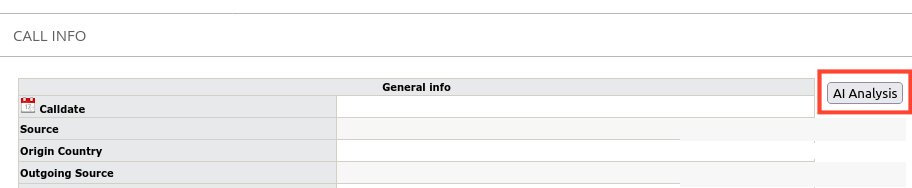
Press AI Analysis once. This panel opens. The question has not been sent.
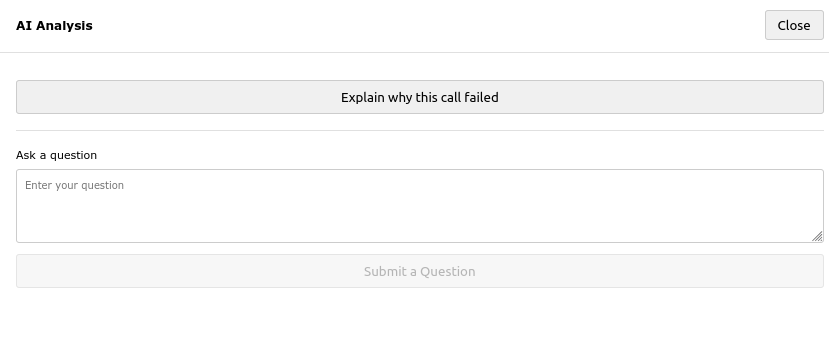
Why the cause line is not the whole call
Hangup cause 38 is the label on a call that never connected. Call Info marks it FAILED(38) and labels the cause 38 – Network out of order. Billable seconds are 0. The text on the row says the network is not working, and a new attempt at once has a poor chance of connecting.
That is the meaning of the code. The route question is smaller. Which provider returned 38? Did MOR or M4 try another provider after that? Did the attempt die in a few seconds, with no billable time? The provider is already on that row. Press Explain why this call failed and the assistant reads it. You do not paste the name into the box.
A second row can say FAILED and still be a completed call. On one MOR call, the first provider returned FAILED after about 3 seconds, hangup cause 1 – Unallocated (unassigned) number. MOR then sent the call to the next provider. That provider answered. The call ran about 12 minutes, and the CDR stored 727 billable seconds.
The assistant opened on that call with a direct line: this call did not fail overall. The first provider attempt failed. The next provider answered, and the call completed. The log did not include the first provider’s SIP response, so the reply said to check the SIP signaling on that attempt before treating cause 1 as final.
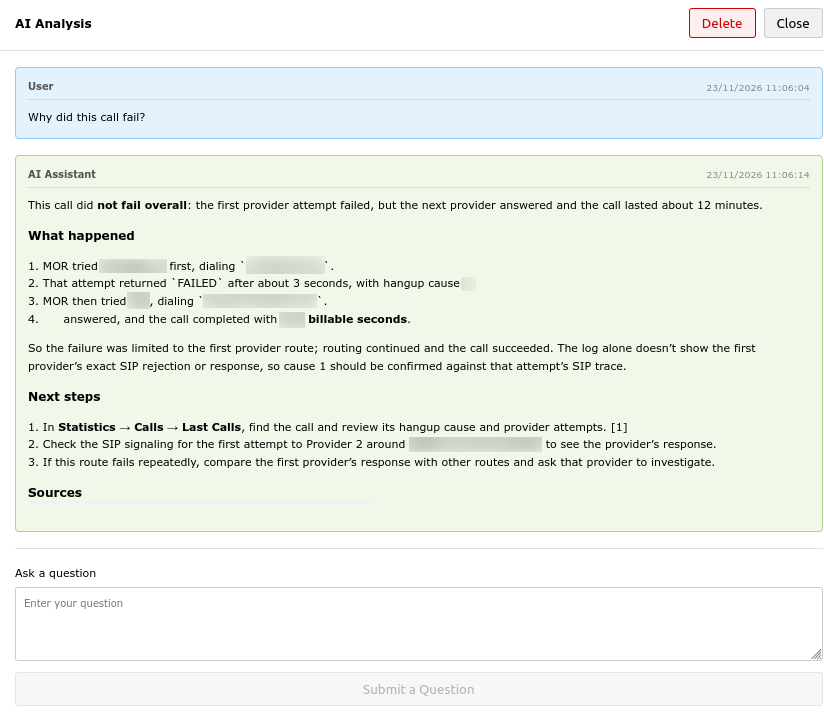
The menus are the ones in Class 4 and class 5: when one switch is not enough. On MOR, open STATISTICS → Calls → Last Calls, then Call Info. On M4, open REPORTS → Calls List, then Call Info, and press AI Analysis. Press Explain why this call failed. The assistant reads the providers already printed on that row. It names which attempt failed, whether a later provider completed it, and whether that attempt’s SIP response is in the log. You do not paste a provider name the row already shows. The 3 seconds, hangup cause 1, and 727 billable seconds are a MOR call of that shape: a failed first attempt, then a completed call. A cause 38 row is the other shape: FAILED(38), 0 billable seconds, network out of order. The same button reads that row.
How a question runs
- Open Call Info for the call you care about.
- Press AI Analysis. The panel opens. You have not sent a question yet.
- Press Explain why this call failed, or type another question and press Submit a Question.
- Read the reply. Look for the attempts, the hangup cause, and whether the call completed.
- Ask the next question in the same box.
You do not open a second panel for the follow-up. The thread belongs to this call.
Read the reply before you ask how to fix the call. When the reply says the log has no SIP response from that provider, open the trace for that attempt. A question such as “How do I fix this?” does not change the route. You decide that after the trace.
Questions that belong in the box:
- How do I fix this?
- How do I avoid this next time?
- What do you suggest?
- Any other question about this call.
The ready question is the short path. The box is the rest of the job. A row with cause 38 can take “Did a later provider answer, and how do I keep the next attempt off the one that returned 38?” A call that completed on the second provider can take “How do I keep the next attempt off the provider that failed?” Ask that only after you have read the trace.
What the panel does
| Control | Result |
|---|---|
| AI Analysis | Opens the panel for this call |
| Explain why this call failed | Sends that question and shows the reply |
| Ask a question, then Submit a Question | Sends the sentence you typed |
| Another question in the same box | Continues the thread |
| Close | Hides the panel |
| Delete | Clears the session and returns the panel to the empty state |
The completed-call reply had three parts: a line on whether the call failed, a short list of what the switch did provider by provider, and a next check with a source for the hangup text. You still get an explanation of this call, and the box is still there for the next question.
When the reply says the log has no SIP response from that provider, open the trace for that attempt before you change a route. If the reply and the trace do not match, open a ticket. The support plan is how that ticket is handled. The panel names the check, and you decide whether to change the route.
Getting started
- Open the failed call. On MOR: STATISTICS → Calls → Last Calls, then Call Info. On M4: REPORTS → Calls List, then Call Info.
- If AI Analysis is on that page, this build has it. Press it, then press Explain why this call failed. The reply uses the providers already on that row.
- The account needs an active support plan. There is no separate price. The home card on the Support portal shows the plan name and dates on the account you already have.
- Open the trace before you change the route. If the reply and the trace do not match, open a ticket on that plan.
Ask the next question
On a cause 38 row the ready answer uses the provider already on Call Info. The next line is whether a later provider answered, or how to keep the next attempt off that provider. On a call that completed on the second provider, the next line is how to keep the next attempt off the provider that failed.
Type that as the next line. Press Submit a Question. Stay on the same call while you ask. The follow-up does not change the route. Open the trace first when the reply says the SIP response is missing.
Summary
| Topic | Detail |
|---|---|
| Where | Call Info, button AI Analysis |
| First press | Opens the panel |
| Second press | Explain why this call failed, or your own question |
| After that | More questions in the same panel |
| Products | MOR and M4, on the Call Info page that shows AI Analysis |
| Who | Clients with an active support plan |
| Price | No extra fee |
If your support plan is active, open a failed call and look for AI Analysis. Press it. If the plan is not active, the button stays off. If the button is not on Call Info, this build does not include it.
FAQ
Does AI Call Analysis cost extra?
No. A support plan includes it. It is not a separate add-on.
Which version has the button?
Open Call Info on a failed call. On MOR that is STATISTICS → Calls → Last Calls. On M4 that is REPORTS → Calls List. If AI Analysis is on that page, this build has it. If the button is not there, this build does not include it.
Is the 727-second call an M4 example?
The 3 seconds, hangup cause 1, and 727 billable seconds are a MOR call of that shape: a failed first attempt, then a completed call. Cause 38 with 0 billable seconds is the short row. On M4 you open that call’s Call Info and press Explain why this call failed. The assistant reads the providers already on that M4 row.
What about a burst of short calls?
Open one row. A cause 38 row is FAILED(38) and 0 billable seconds. Press Explain why this call failed on that row. The panel explains that call. It does not list every attempt on the route.
What about a failed forward?
Open that call’s Call Info and press Explain why this call failed. The panel reads the attempts stored on that row. It does not open the phone or the dialplan. If a provider returned a cause, the reply is about that cause. If the call never left the PBX, the reply can only use what that row stored.
What if the reply and the trace disagree?
Open a ticket. The support plan is that ticket. Do not change the route from the reply alone.
Can I skip the ready question?
Yes. Type your own sentence and press Submit a Question. Use Explain why this call failed when you want the failure explained first.
Does the reply replace the SIP trace?
No. When the reply says the log has no SIP response from that provider, open the trace for that attempt before you change the route.
Open a failed call
If the support plan is active and AI Analysis is on Call Info, press it.