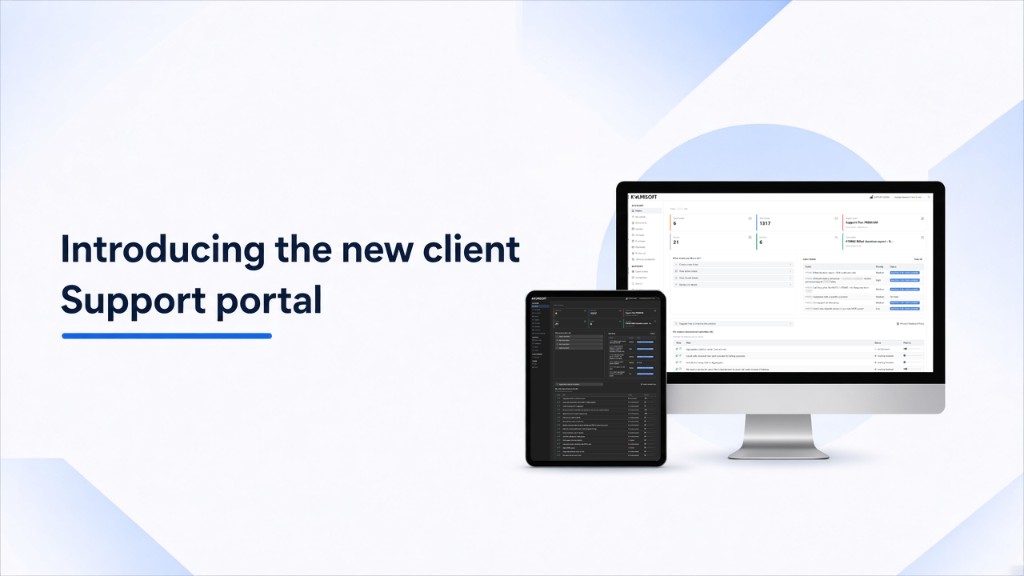
Same tickets, servers, payments, and product votes. A clearer home screen, light and dark themes, and less hunting through menus.
Kolmisoft clients already work in the Support System at support.kolmisoft.com. That is where you open tickets, manage contacts, review servers and documents, handle payments and proformas, and vote on product improvements.
The new GUI is at portal.kolmisoft.com. The menus and jobs stayed. If you know the old portal, you still know this one. You find the next action faster on a busy day.
This post is for operators and technical owners who already have a Support Plan login, and for teams evaluating how Kolmisoft support works next to MOR or M4.
Why a new GUI?
Support work comes in bursts. A route fails, a balance question lands, a colleague needs login access, and you still owe a reply on an open ticket. The portal has to show status without a long menu search.
The old layout worked. The new one puts the same data on a card-based home page, adds light and dark themes, and keeps the account, support, and development sections in one left menu.
This refresh does not replace ticket rules, Support Plans, or the product feedback process you already use. It is a visual update so the familiar tools read faster.
Home after login
Home is the overview.
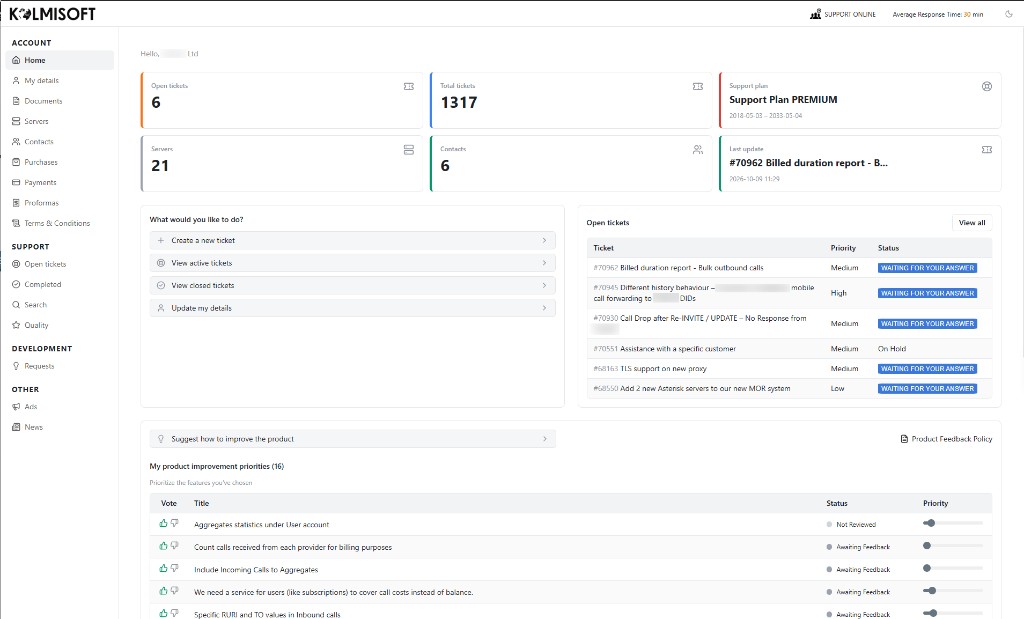
Light theme: summary cards, quick actions, open tickets, and product improvement priorities on one screen.
Across the top you get short status cards, for example:
| Card | What it shows |
|---|---|
| Open tickets | How many tickets still need work |
| Total tickets | Lifetime ticket count for the account |
| Support plan | Your current plan name and dates |
| Servers | Servers linked to the account |
| Contacts | People with access or contact records |
| Last update | The newest ticket activity |
Exact numbers differ per account. The cards show data you already had elsewhere; they sit on Home first.
The header still shows support availability and the current average response time during working hours (the login page shows a live figure as well). Use the moon/sun control in the corner to switch between light and dark.
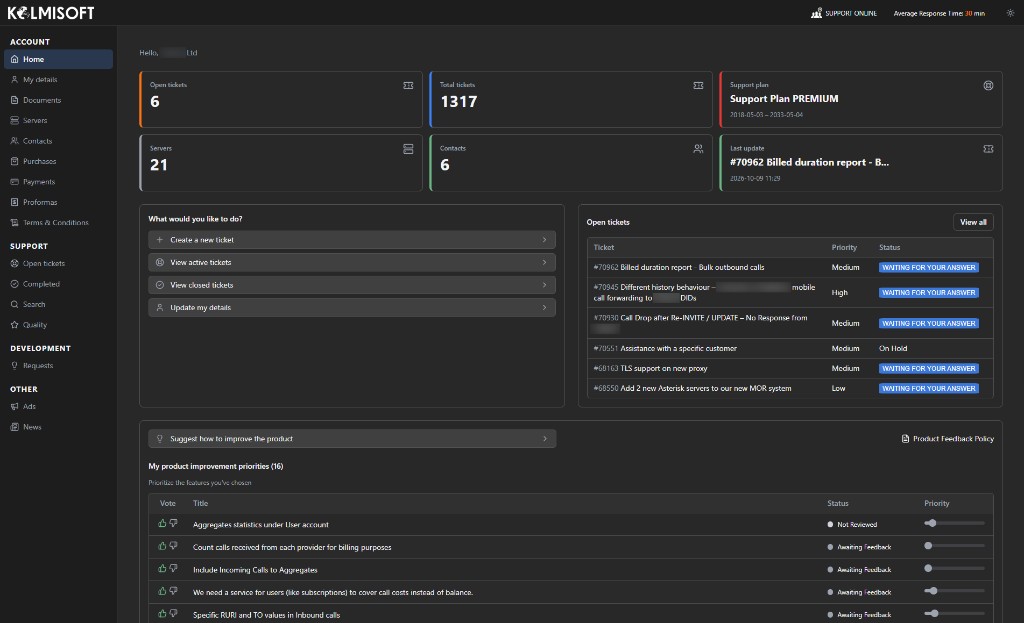
Dark theme: same layout and menus, lower screen glare for evening work.
Quick actions and open tickets
Under What would you like to do? the common jobs are one click:
- Create a new ticket
- View active tickets
- View closed tickets
- Update my details
Next to that, Open tickets lists the live queue: ticket id and title, priority (High / Medium / Low), and status labels such as waiting for your answer or on hold. View all opens the full list when the table is truncated.
You still create one ticket per problem, keep discussion inside the ticket, and choose priority with care. The new GUI does not change those rules. It shortens the path from login to the next reply.
Same left menu, same jobs
Navigation stays grouped the way operators already think about the account:
Account: Home, My details, Documents, Servers, Contacts, Purchases, Payments, Proformas, Terms & Conditions.
Support: Open tickets, Completed, Search, Quality.
Development: Requests.
Other: Ads, News.
If your day is invoices and contacts, Account is enough. If you are chasing a failed route, Support is still the path. Development remains the place for product requests and priorities.
Product improvement priorities
The bottom of Home keeps product feedback in view.
- Suggest how to improve the product opens a new suggestion.
- My product improvement priorities lists requests you care about, with up/down votes, status (for example Not Reviewed or Awaiting Feedback), and a priority slider so Kolmisoft sees relative importance for your company.
Voting and priorities were already part of the Support System feedback flow. They now sit on the home screen. Submitting a request still does not guarantee delivery; it feeds the same backlog review process as before.
Key capabilities at a glance
| Area | What stayed | What looks new |
|---|---|---|
| Tickets | Create, reply, priorities, history | Home cards + open-ticket table + quick actions |
| Account data | Details, documents, servers, contacts | Same sections in a clearer sidebar |
| Billing docs | Purchases, payments, proformas | Same entries, modern list/detail chrome |
| Product feedback | Suggestions, votes, My Priorities | Visible block on Home |
| Theme | Single classic look | Light and dark |
Getting started
- Open portal.kolmisoft.com and sign in with your usual username and password.
- Land on Home and check the summary cards against what you expect for open tickets and your Support Plan.
- Pick light or dark with the theme control.
- Use What would you like to do? for the next ticket or details update, or open the matching item in the left menu.
- Scroll to My product improvement priorities if you want to vote or adjust sliders on open requests.
- If a contact needs access, update Contacts the same way you did before (login access is still set per contact).
No migration step. No new training course. If something looks wrong for your account, open a ticket from the portal and describe the screen.
What is next
We will keep polishing the GUI from real client use. Menu labels and ticket workflows stay the source of truth; visuals can still tighten.
If you evaluate Kolmisoft softswitches and support together, the portal is the same rapid-response ticketing channel named on both product pages: MOR and M4. For company contact details and the support link, see Contacts.
Summary
| Topic | Detail |
|---|---|
| What shipped | Modern client Support portal GUI |
| What did not change | Ticket, account, billing, and feedback workflows |
| Themes | Light and dark |
| Who it is for | Clients with a Support System login |
| Where to go | portal.kolmisoft.com |
Log in at portal.kolmisoft.com, open Home, and run your next ticket or vote from the new layout. If a card or menu item does not match what you expect, tell us in a ticket so we can fix the view for your account.
FAQ
Do I need a new password?
No. Use the same Support System credentials.
Did ticket priorities or Support Plan rules change?
No. The GUI refresh does not rewrite priority meanings, plan entitlements, or communication rules inside tickets.
Where did product suggestions go?
They remain under Development / Requests, and the home screen now surfaces Suggest how to improve the product plus My product improvement priorities.
Can I stay on the old look?
Yes, for a limited time. Later we will migrate to the new GUI.
Open the new Support portal home
Log in at portal.kolmisoft.com, pick light or dark, and run your next ticket or product vote from the clearer layout.