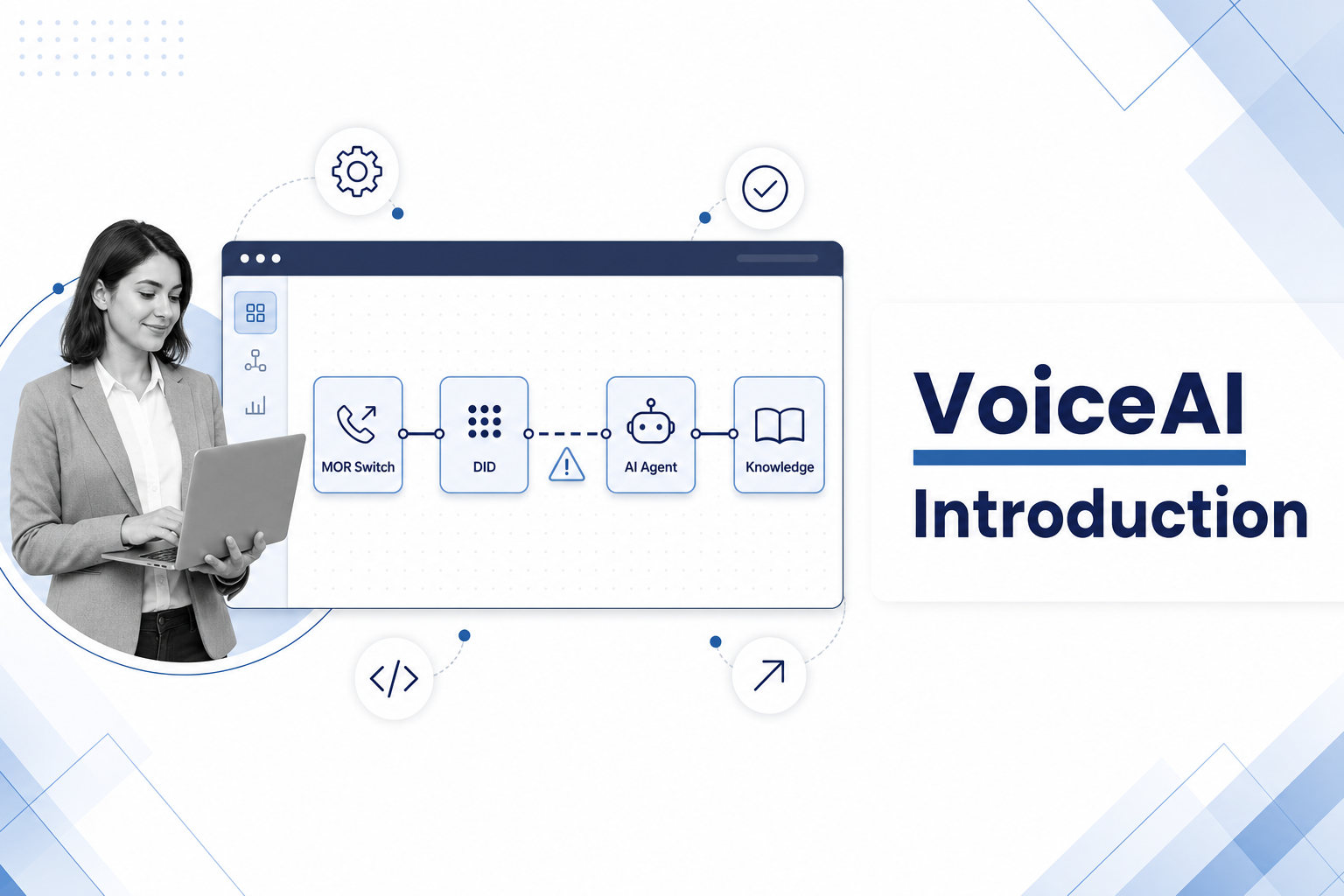
Turn any DID into a 24/7 virtual assistant. Configure it in minutes, sync from MOR, monitor in real time.
VoiceAI is Kolmisoft’s managed platform for AI-powered inbound phone calls. When a caller dials one of your numbers, a configurable virtual agent answers. The agent runs on OpenAI Realtime Voice (the production AI engine today). It follows your business rules, ends calls programmatically, and leaves you with a transcript in the dashboard and in your inbox.
If you run MOR for billing and telephony, VoiceAI fits your existing workflow: DIDs sync from MOR, routing is visual, and call history stays where your operations team expects it.
Why VoiceAI?
IVR trees and outsourced call centers cost money to change and are slow to improve. VoiceAI gives you:
- Instant answers: callers get a greeting and a response without waiting in a queue.
- Your knowledge, your rules: company hours, services, escalation policy, and tone are configurable per agent.
- No duplicate DID management: numbers live in MOR; VoiceAI imports and keeps them in sync.
- Visibility: watch calls as they happen, read transcripts, troubleshoot routing, export history.
- Follow-up email: optional summaries with call metadata and conversation text after each call.
VoiceAI is built for resellers and operators who offer AI receptionist or virtual assistant services to their customers. Multi-tenant isolation, role-based access, and usage tracking are built in.
How a call flows
An inbound call takes this path:
Caller → MOR (your DID) → OpenAI Realtime SIP → VoiceAI core → AI agent answers
                                                              ↓
Dashboard (live transcript) + optional email- A caller dials a DID provisioned in MOR.
- MOR forwards the call to your tenant’s OpenAI SIP endpoint (
sip:@sip.api.openai.com). - OpenAI notifies VoiceAI; the platform looks up the tenant, DID, and agent, then accepts the session with that agent’s voice, instructions, and tools.
- During the call, transcripts and events stream to the database in real time.
- When the call ends, the platform records usage and queues configured post-call emails.
The AI engine is OpenAI Realtime today. The orchestration layer can swap providers, but production deployments use OpenAI’s voice models and SIP integration.
Major feature: MOR DID sync
You do not re-enter phone numbers in a second system. VoiceAI connects to your MOR switch over MOR API v2 (read-only DID inventory) and keeps the dashboard aligned with what MOR has provisioned.
What sync gives you
| Capability | Benefit |
|---|---|
| Automatic DID import | Numbers assigned to your VoiceAI owner in MOR appear in the VoiceAI DIDs list |
| Deliverability status | See whether MOR can route a number to the AI endpoint right now |
| Read-only by design | VoiceAI never mutates MOR balances, tariffs, or DID lifecycle. Billing stays in MOR |
On the MOR side
In MOR, a DID is assigned to your VoiceAI tenant (for example, owner voice-ai-test) and routed to the OpenAI PJSIP device:
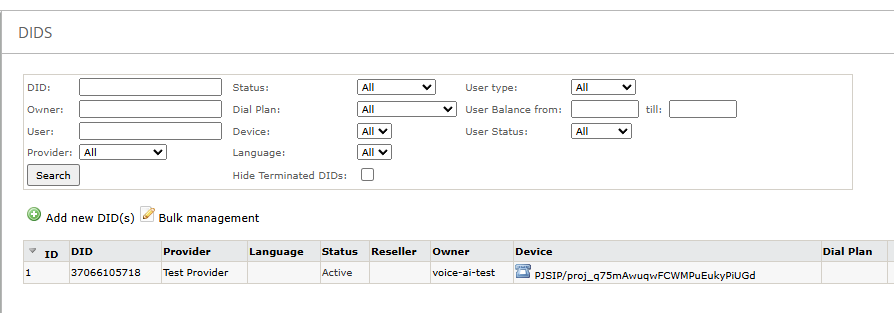
In MOR: the DID owner points at VoiceAI; the device targets the OpenAI SIP trunk for your project.
In the VoiceAI dashboard
Connect MOR from Routing or DIDs, open your MOR switch, then MOR connection (API URL, accountant username, GUI password). After sync, each DID shows sync status, assigned agent, and readiness for calls.
Visual routing configuration
The Routing page is a live canvas of your inbound path:
Switch (MOR) → DID → Agent → Knowledge → Email
- Drag a DID onto an agent to assign it (or use the DIDs table).
- Solid edges mean the DID is routable (local intent plus MOR deliverability).
- Dashed warning edges mean an agent is assigned but the DID is not deliverable on the switch. Fix routing in MOR before calls connect.
- Test readiness runs a per-DID health check (agent assigned, switch deliverable, live MOR lookup when configured).
- The setup wizard guides first-time MOR credential entry and initial sync.
Configure your AI agent
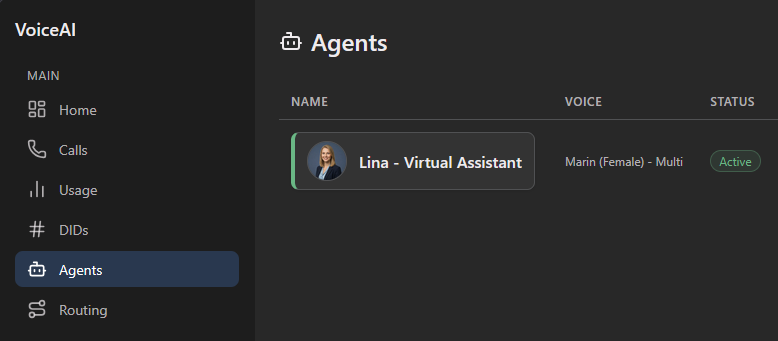
Each agent is a virtual employee: name, photo, voice, behavior, business facts, tools, and email settings. Create agents from templates (platform defaults with optional locked fields) or from scratch.
Settings tab
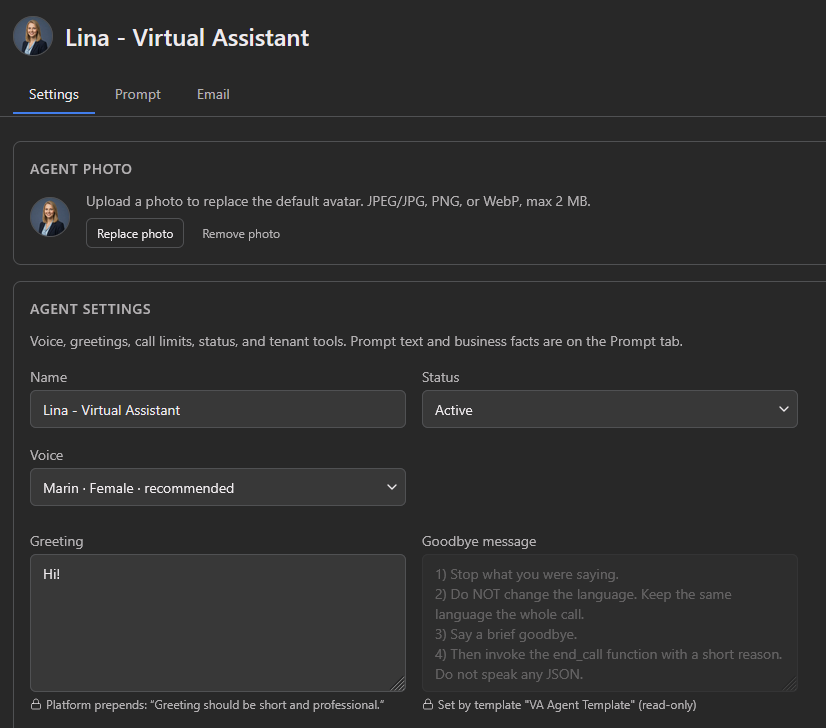
| Setting | What it controls |
|---|---|
| Name & photo | Caller-facing identity; avatar appears on the dashboard and routing graph |
| Status | Active / inactive / archived. Inactive agents block new calls |
| Voice | OpenAI voice catalog (e.g. Marin, female, multilingual) |
| Greeting | First thing the agent says when the call connects |
| Goodbye / timeout goodbye | How the agent ends calls; can be template-locked by the platform |
| Call limit / force hangup | Maximum call duration and hard cutoff |
| Tools | Optional capabilities enabled for this agent (see below) |
Prompt tab: behavior and business facts
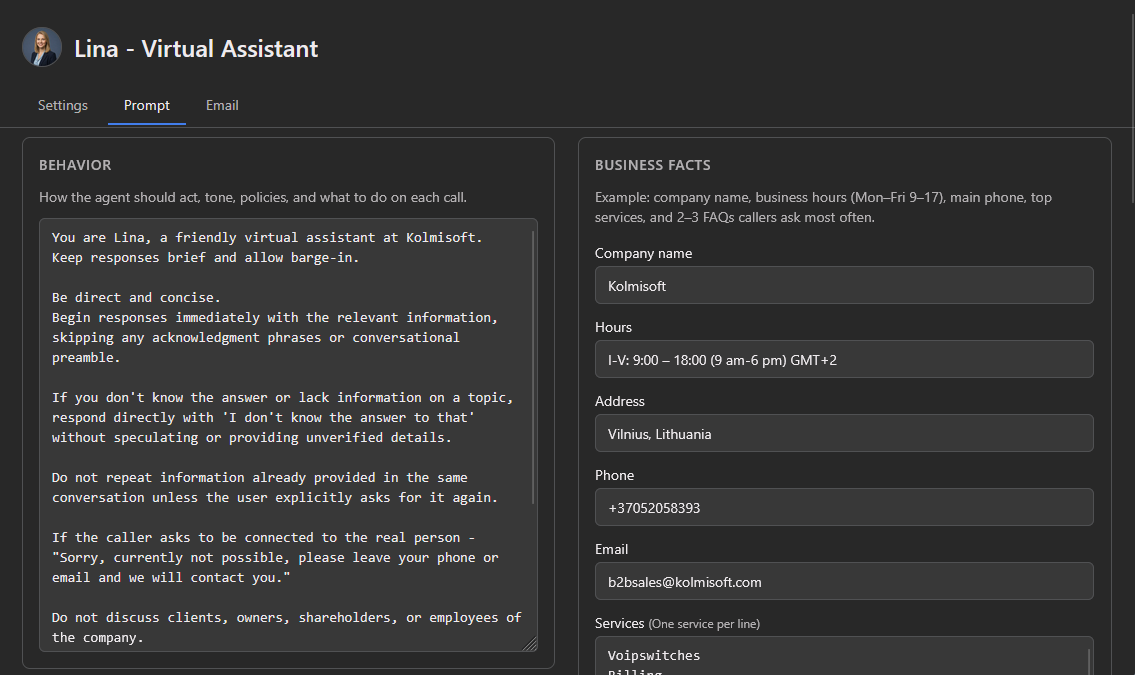
- Behavior: free-text instructions for tone, escalation policy, what not to discuss, language handling.
- Business facts: structured fields (company, hours, address, phone, email, services, FAQs) compiled into a KNOWN FACTS block at call time so the model answers consistently.
- Call-time prompt preview: see the assembled prompt before going live, with a token estimate.
Talk in any language
VoiceAI agents are not limited to one language. The OpenAI Realtime model understands and speaks many languages. Callers can switch mid-call: start in English, ask the agent to continue in Spanish or Russian, and the same agent adapts. You do not need a separate agent or DID per language. The transcript (in all languages) appears in the dashboard and in post-call emails.
Built-in agent tools (functions)
The AI invokes these during a call, not operators:
| Tool | Purpose |
|---|---|
end_call |
Hang up after speaking a goodbye |
log_user_line |
Records what the caller said (user-side transcript lines) |
send_email |
Agent can send a plaintext email mid-call when enabled |
| Custom webhook tools | HTTP callbacks to your systems; the result is fed back into the conversation |
Platform templates can inject forced tools and hidden instruction extensions that tenants cannot edit. Use these for consistent compliance across customers.
Email tab
Per agent, configure:
- From name/address (verified sender domains)
- Recipients with template selection
- Masking options for caller number and transcript in email
- Delivery log and test send
Tenant-wide Email Templates (Admin → Email Templates) define the HTML layout; agents choose which template each recipient gets.
Dashboard at a glance
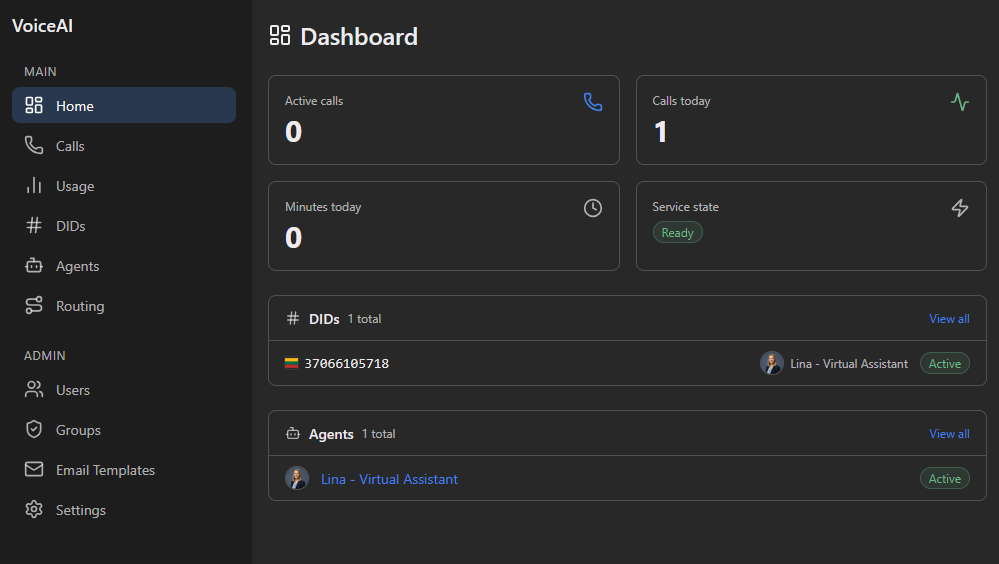
The home page shows active calls, calls today, minutes today, and service state, plus quick views of your DIDs and agents.
From Agents, create and manage every virtual assistant. From DIDs, see sync status and assignments. Usage tracks consumption for billing visibility. Calls is your CDR-style history with live and completed tabs.
Live call monitoring and transcripts
When a call is in progress, open it from Calls → Live (or click an active row). The detail page streams the transcript over SSE. You see each AI and caller line as the conversation happens. The Events tab shows technical events (webhook, accept, tool invocations) for troubleshooting.
After the call, the record stays searchable: caller, DID, agent, duration, end reason, cost estimate, transcript, and tool history. Tenant admins can delete records for privacy workflows.
Transcripts to email
Each completed call can trigger email to one or more recipients.
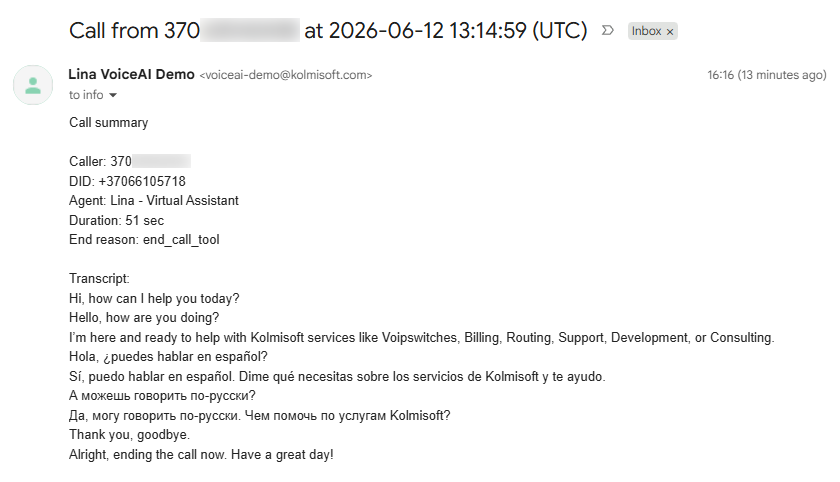
Typical email contents:
- Caller and DID
- Agent name
- Duration and end reason (e.g.
end_call_toolwhen the AI ended the call) - Full transcript with speaker labels
- Link back to the call in the dashboard (
{{CALL_LINK}}in templates)
Delivery uses an outbox worker, with a per-tenant daily cap and logging on the agent’s Email tab. Masking rules let you redact caller numbers or transcript text per recipient when you forward summaries to external partners.
MOR call history still works
VoiceAI does not replace MOR CDR. Answered AI calls appear in MOR → Last Calls like any other terminated session:
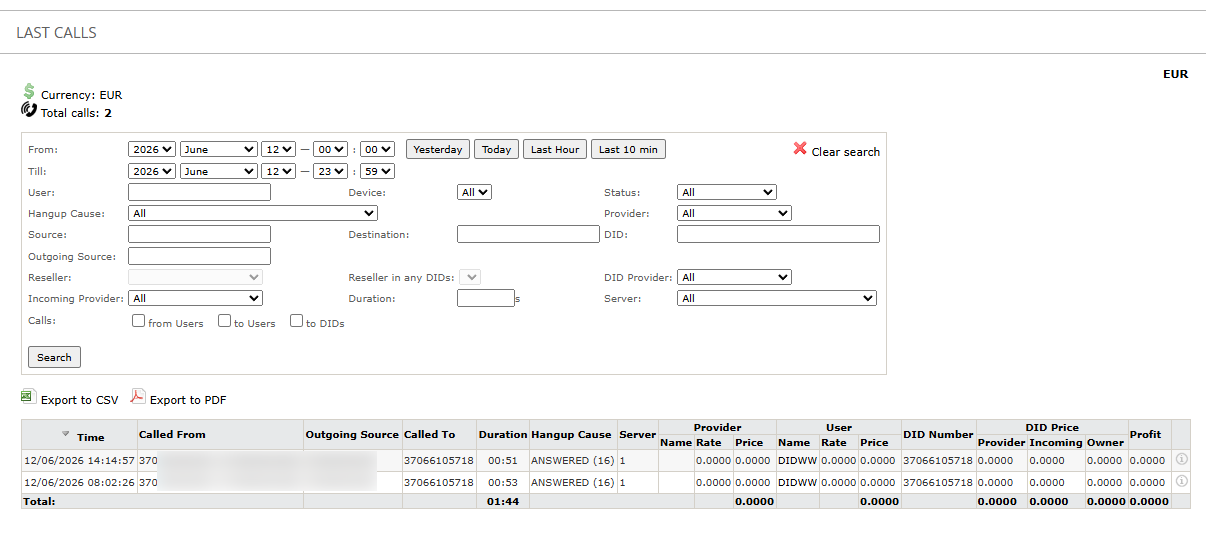
Your finance and NOC teams keep using MOR for rates, profit, and provider reporting. VoiceAI adds transcripts and tool history on top of the telephony record.
Getting started (checklist)
- Provision a VoiceAI tenant (platform admin).
- Create an agent. Pick a template or start blank; set voice, greeting, behavior, and facts.
- Connect MOR on the Routing page. Enter API v2 credentials and run Sync now.
- Assign DIDs to agents on the routing canvas or DIDs table.
- In MOR, point the DID device to your OpenAI SIP project and set the VoiceAI-compatible owner.
- Run Test readiness on the DID.
- Place a test call. Watch the live transcript, then confirm the summary email.
- Optional: configure email templates and recipients.
What’s next
Planned additions:
- Call transfers: hand callers off to a human queue or another SIP destination
- External integrations: connect VoiceAI to your CRM, ticketing, or back-office systems over APIs
- Webhooks: notify external systems when calls start, end, or when the agent takes specific actions
Summary
| You need… | VoiceAI provides… |
|---|---|
| Answer phones with AI | OpenAI Realtime voice agents via SIP from MOR |
| Use existing DIDs | Direct MOR sync. Import from MOR API v2 |
| Control behavior | Per-agent settings, prompts, facts, tools, templates |
| See what happened | Live transcripts, call history, MOR CDR compatibility |
| Notify your team | Configurable post-call emails with masking |
| Operate at scale | Central dashboard for agents, DIDs, calls, and usage |
VoiceAI connects your MOR DIDs to OpenAI Realtime voice agents. You keep one numbering plan in MOR and configure each agent in the dashboard.
Ready to add AI phone agents to your MOR platform?
Whether you are evaluating VoiceAI for a pilot, planning a reseller rollout, or need help connecting MOR DIDs to OpenAI — our team can walk you through setup.